
Learn how to install a travel eSIM on iPhone using a QR code, set up before you fly, and avoid roaming fees. Step‑by‑step instructions for iPhone XS and newer.

Reviewed by · Device compatibility & installation
Updated 2026-10-18
3 steps · about 2 minutes on Wi‑Fi
Good to know
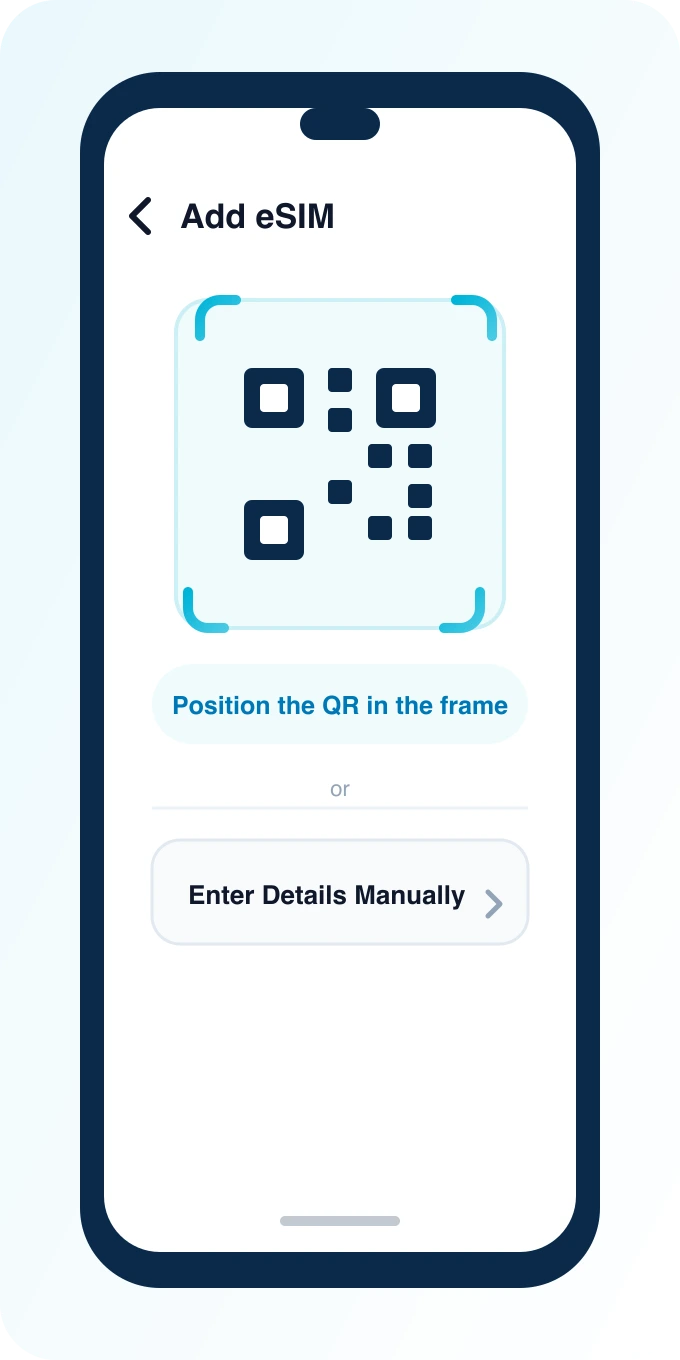
Settings → Cellular → Add eSIM → Use QR Code, then scan the code from your PingRoam dashboard.
No QR handy? Use Enter Details Manually below.
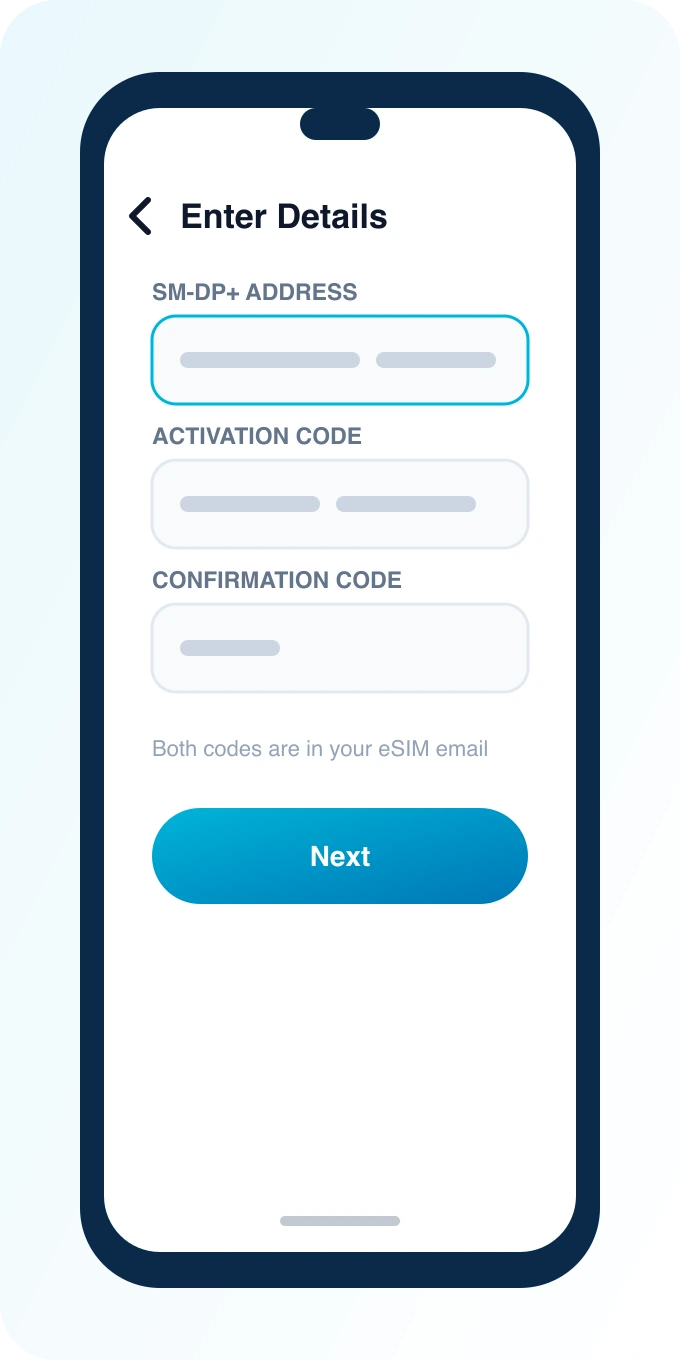
Paste the SM-DP+ address and activation code from your dashboard, then tap Next.
Both codes are on the same confirmation email as your QR.
Tap Add Cellular Plan, then label it something like “Travel Data” so it's easy to find later.
Leave your home line active — this adds a second line, it doesn't replace it.
How to Install an eSIM on iPhone - Step-by-Step Guide
Installing a travel eSIM on iPhone takes a few minutes with a QR code: open Settings → Cellular → Add eSIM, scan your plan QR, then set Cellular Data to the travel line before or after you land. You keep your physical SIM for calls and SMS. This guide covers iPhone XS and newer on iOS 17+.
PingRoam plans are sold on the web only. The companion app shows QR codes and usage; it does not sell in‑app plans.
Before you begin, make sure your iPhone is updated to the latest iOS version available for your model. Older software can hide the eSIM option or cause the QR scan to fail. If you see a carrier lock message, contact your home provider to confirm that eSIM use is allowed while you keep your physical line active.
Related: What is an eSIM? · eSIM compatibility check
When you purchase a plan, the dashboard displays the QR code together with the SM‑DP+ address and activation code. Keep that page open on a separate device; scanning from a printed copy works just as well if you prefer not to use a screen.
If you travel with a companion, you can buy separate plans for each device or select a regional bundle that covers multiple countries. The dashboard lets you label each eSIM, making it easy to identify which line belongs to which traveler.
Manual entry (SM‑DP+ address and activation code) is available if QR scanning fails — use the values shown in your dashboard.
After scanning, the iPhone may ask you to choose a default line for iMessage and FaceTime. Keep your home number selected for those services if you rely on them for verification codes; you can still use the travel eSIM for data only.
If the QR code does not scan, try increasing the brightness on the screen displaying the code, or hold the iPhone a few inches farther away. A clean camera lens helps; wipe it with a microfiber cloth if needed.
Once data is active, open a browser or a map app to confirm connectivity. If you see no signal, toggle Airplane Mode on and off; this forces the modem to re‑search for networks.
Some plans require you to manually enable data roaming after you cross a border. The plan card in your dashboard will note whether roaming is needed for the specific country or region. Always double‑check that roaming is disabled on your home line to avoid unexpected charges from your carrier.
If you plan to make voice calls over Wi‑Fi (Wi‑Fi Calling), you can keep your home line active for that feature while using the eSIM solely for data. This setup lets you stay reachable on your regular number without sacrificing the high‑speed data connection.
| Problem | Likely fix |
|---|---|
| Unable to activate | Retry on Wi‑Fi; confirm the QR was not already used on another device |
| No bars after landing | Toggle Airplane Mode; confirm Cellular Data = travel eSIM |
| Still using home data | Set Cellular Data to the eSIM; disable data switching |
| Slow speeds | Restart iPhone; verify you bought the correct country/region plan |
| QR code says “Invalid” | Ensure you are scanning the most recent code; expired or reused codes will not work |
| eSIM option missing | Verify iPhone model and iOS version; check for carrier restrictions in Settings → General → About → Carrier Lock |
If you encounter a persistent activation error, note the exact message and contact PingRoam support through the website. Providing the SM‑DP+ address and activation code helps the team diagnose the issue faster.
Android menus differ by OEM. See How to install an eSIM on Android for Pixel and Samsung steps using the same QR.
Yes. Install on Wi‑Fi at home or the airport. You can leave the travel line inactive until you need data.
No. Modern iPhones support Dual SIM: one physical (or second eSIM) plus your travel eSIM for data.
Often yes for the travel eSIM line only. Follow the plan card in your dashboard. Keep home‑line roaming off to avoid carrier charges.
Your model, region, or carrier lock may block eSIM. Run an eSIM compatibility check before purchase.
Data needs vary by usage. Light browsing, maps, and messaging typically consume 1‑2 GB per day. Streaming video or video calls can increase that to 5 GB or more per day. Review your recent mobile‑data usage in Settings → Cellular to estimate a suitable plan.
Yes. You can store several eSIM profiles on the iPhone and activate the one that matches your current location. Only one eSIM can be active for data at a time, but you can change the active line in Settings → Cellular whenever you cross a border.
Absolutely. The home line remains reachable for calls and texts, while the eSIM handles data. Just ensure data switching is turned off so the iPhone does not inadvertently send data through the home line.
Stay connected – pick a plan for your next trip at Destinations and follow the install guide above.
Worth booking – consider tickets for the Louvre in Paris (/tickets/paris), the Colosseum in Rome (/tickets/rome), Park Güell in Barcelona (/tickets/barcelona), the Statue of Liberty ferry in New York (/tickets/new-york), or the British Museum in London (/tickets/london). All are available through the PingRoam tickets hub.
