Safely delete a travel eSIM on iPhone or Android after your trip — what happens to your data, and when to keep it installed.

Reviewed by · Device compatibility & installation
Updated 2026-09-27
3 steps · once your trip is over
Settings → Cellular → select the travel eSIM you used on your trip.
You can't get the same profile back once it's deleted.
Scroll to the bottom of the line's settings and tap Remove eSIM.
A deleted eSIM can't be reinstalled from an old QR screenshot.
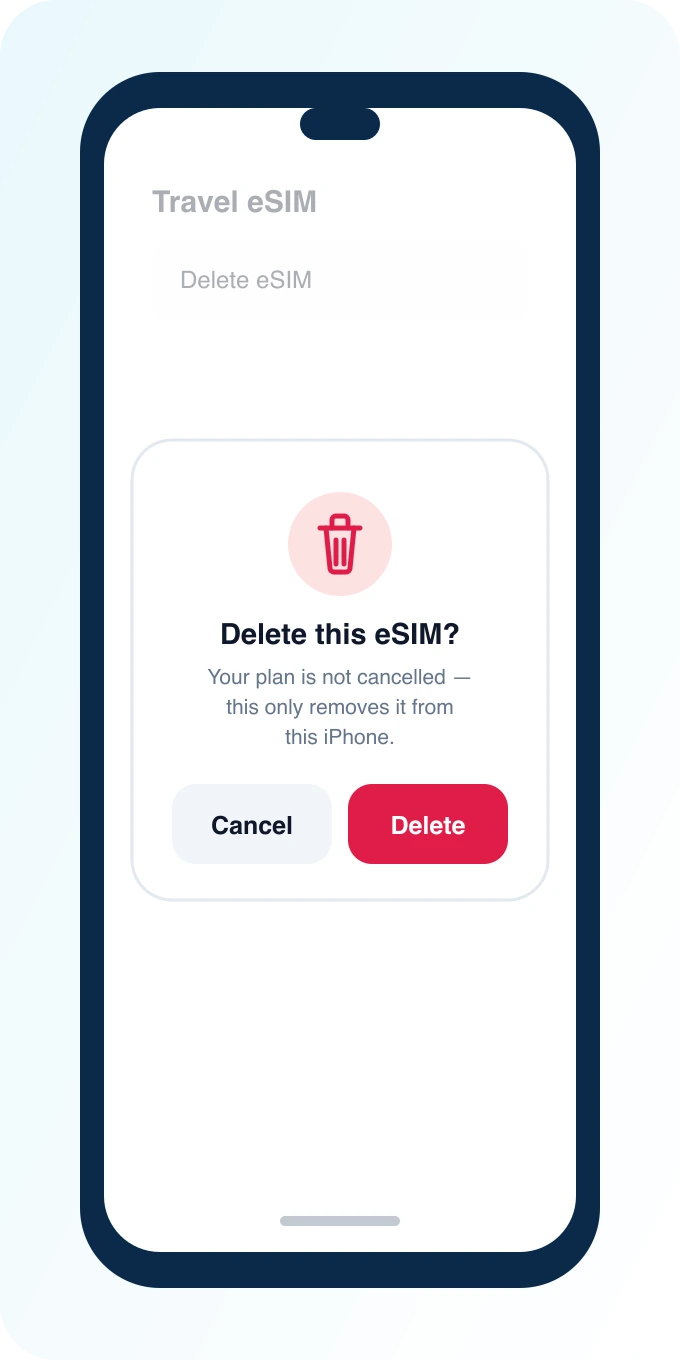
Confirm the removal. Your plan isn't cancelled — this only removes it from this iPhone.
Contact support if you want to cancel the plan itself.
3 steps · once your trip is over
Settings → Network & internet → SIMs (or Connections → SIM manager) → select the travel eSIM.
Only remove it once your trip is fully over.
Tap Remove SIM (or the trash/delete icon) for that profile.
Wording differs slightly by phone brand — look for Remove or Delete next to the eSIM.
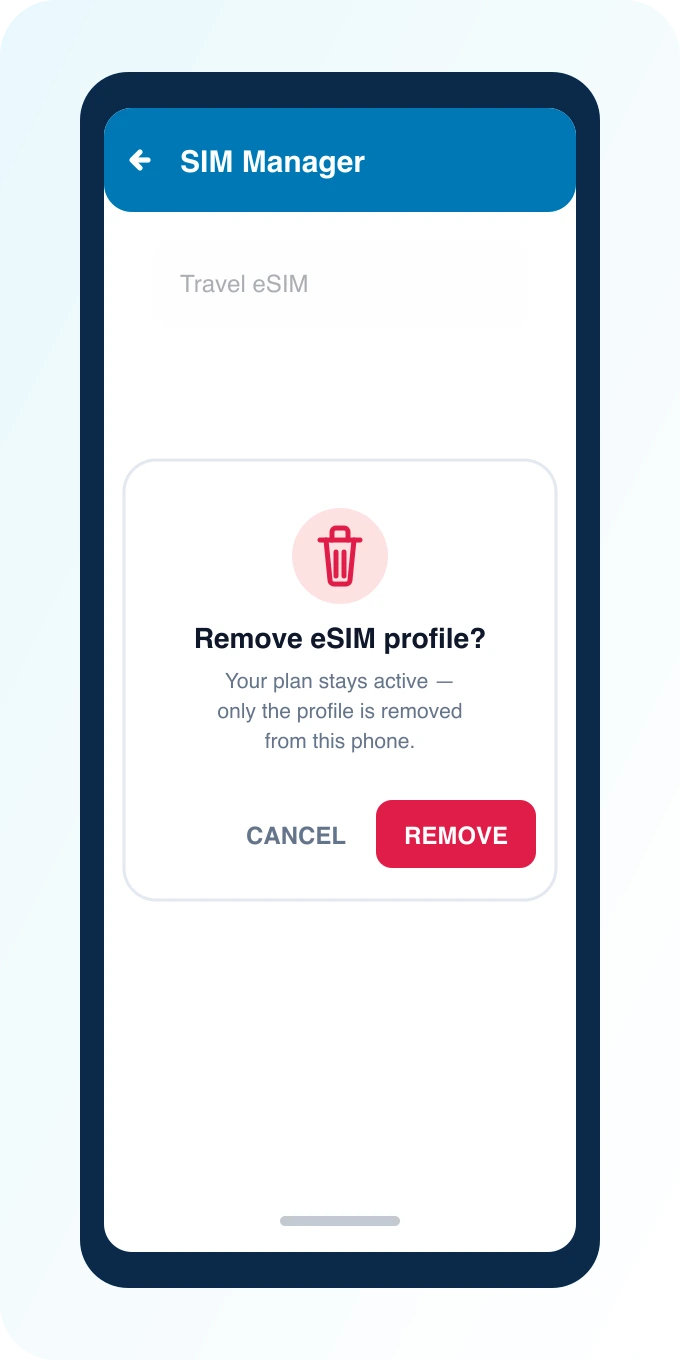
Confirm. Your plan isn't cancelled — only removed from this phone.
Switch Mobile Data back to your home SIM first if it was set to the travel line.
You can safely delete a travel eSIM once your trip is over — it won't affect your home number, contacts, or physical SIM. On iPhone, go to Settings → Cellular, select the travel line, and tap Remove eSIM. On Android, open SIM manager and remove the downloaded profile. Most travelers don't need to do this immediately; it's mainly useful to free up space for your next trip's eSIM or before selling/trading in the phone.
Usually not right away. An inactive travel eSIM with no remaining data just sits unused and doesn't cost anything or drain the battery meaningfully. Remove it when:
Keep it installed if you might return to the same destination soon — some providers allow reactivating an unused profile within its validity window (this varies; check your plan status in the dashboard rather than assuming).
If Cellular Data was set to the line you just removed, iPhone will prompt you to choose a new default — select your home SIM.
Menu wording varies slightly by manufacturer and Android version; the profile is always under the eSIM/SIM management screen either way.
Remove any travel eSIMs the same way you'd remove personal accounts before handing over a device — along with signing out of iCloud/Google, removing Face ID/fingerprint data, and doing a factory reset. An eSIM profile left on a traded-in phone doesn't expose your PingRoam account, but it's good hygiene to clear it along with everything else.
The eSIM profile and any data allowance tied to it are separate from your PingRoam account — check your dashboard for balance and expiry before removing the profile if unused data matters to you.
Usually no — profiles are typically single-install. If you need it again for a return trip, contact [email protected] about reissue options for your plan.
No. Removing a travel eSIM only affects that specific cellular line — contacts, photos, and your home SIM are untouched.
No — removing a profile is a local phone setting and doesn't require an internet connection.
